
 feedshift docs
configure a feed
clicking any feed in the list opens its config. the source, the destination, and three tabs of settings: destination, filters, display.

the toggle on the right disables a feed without deleting it. handy if you want to pause during an event without losing the config. the source is fixed once a feed is created, if you mistyped a handle, delete and re-add.
change where posts land
the destination tab. text channels, announcement channels, threads, and forum posts all work. change at any time, future posts go to the new place. messages already delivered stay where they were.
if you pick an announcement channel, an auto publish new posts toggle shows up. with it on, every delivered message is published to follower servers automatically. otherwise you'll need to publish manually.
filter out the stuff you don't want
filters tab. four content types are toggled here.
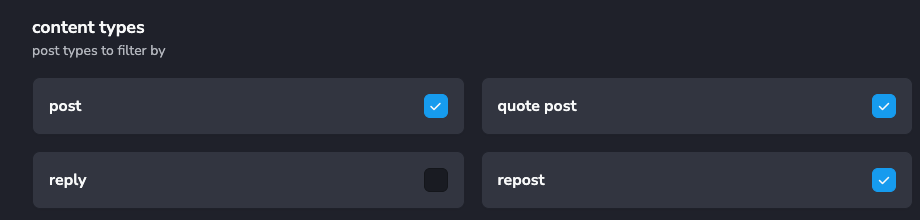
uncheck what you don't want. replies and reposts are the usual culprits for clogging a channel. quote posts are a coin flip depending on the source.
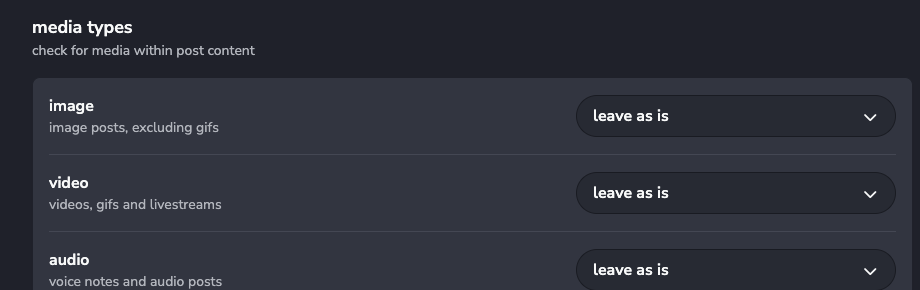
media types sit just below. each row applies to one type:
- require: only deliver posts containing this media
- leave as is: don't filter on this type
- block: drop posts containing this media
require and block stack across types. set image to require and video to block if you only want still artwork from a comic feed.
only post when a keyword shows up
scroll down to keywords.
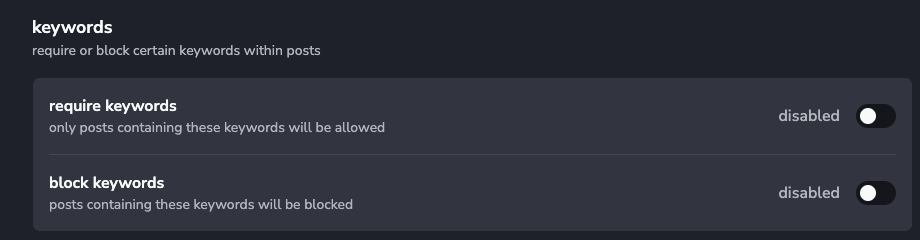
- require keywords only posts when at least one matched keyword is present
- block keywords drops any post containing one
- both can run at once, require runs first, then block
matches are case-insensitive substring, so art will match artist and Heart. wrap a keyword in slashes (/^drop:/i) to use a regex instead.
match keywords in controls where the matcher looks. post content is on by default. flip on image alt text if creators caption their images with relevant terms.
make the message look nicer
display tab. the order roughly follows what shows up in the discord message body, top to bottom.
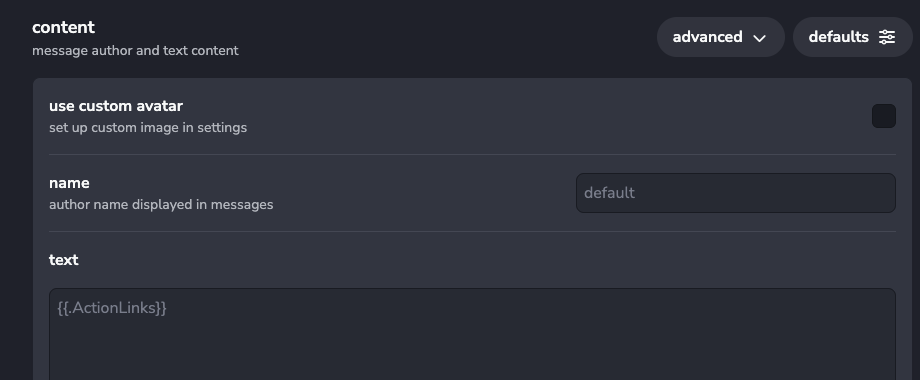
use custom avatar swaps in the per-server avatar (set in server settings). name overrides the author. text is free-form with template fields like {user}, {url}, {content} (full list on configure a feed).
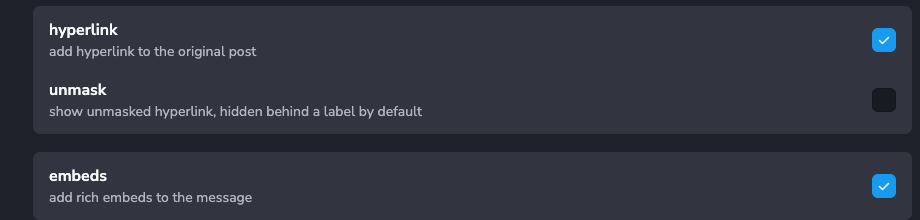
hyperlink includes the post link. unmask shows the raw url instead of a labelled link. embeds adds the rich post embed below the message.
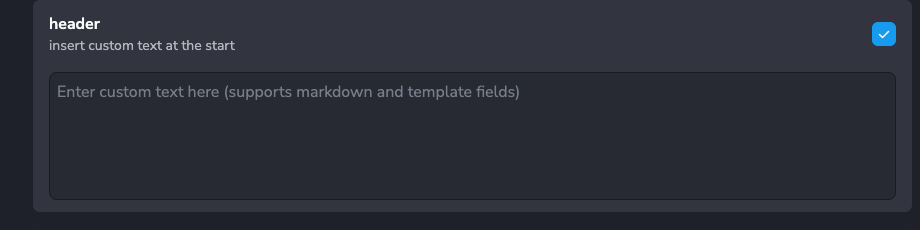
header is free-form markdown that prefixes every delivered message. great for a "new from {user}" line above the post. template fields work here too.
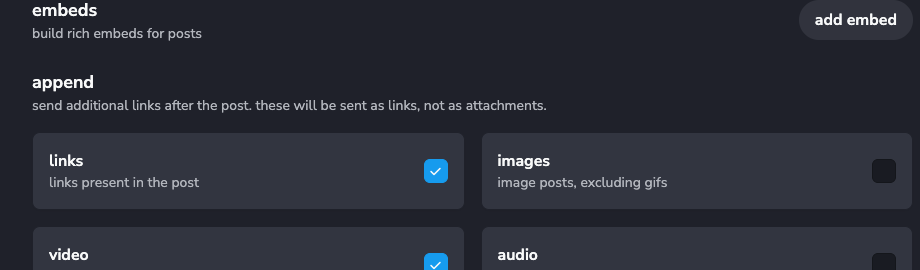
append sends extras like links or images from the post as separate items below the main message. use this when an embed isn't doing the post justice. add embed builds custom rich embeds (premium or pro).
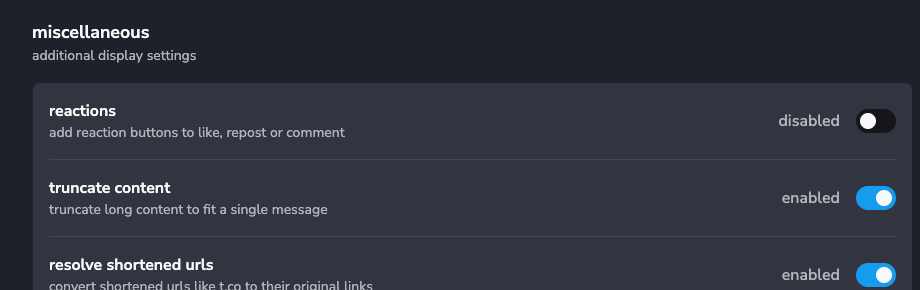
reactions add default like/repost/comment reactions. members tapping these count toward the engagement leaderboard. truncate content keeps long posts within discord's character limit instead of dropping them. resolve shortened urls expands t.co and similar links so previews look clean.
ping a role
scroll to the bottom.

pick a role and it gets mentioned on every delivered post. premium or pro. fair warning, this fires on every post, so save it for high-signal feeds. clear the role to turn it off.
@everyone and @here are in the dropdown too. those work without premium or pro, but think twice before pointing them at a busy feed.
the actions menu
top right of the feed page, actions.
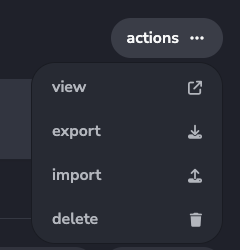
- view opens the source in a new tab
- export downloads the current feed config as json
- import replaces this feed's settings with a json file
- delete removes the feed and stops fetching
export and import are useful for copying a setup between servers, or saving a tested config before you experiment. import here only updates settings, the source stays the same. to copy across platforms or sources, use import on the add feed dialog instead.